主题
VPN下载与连接
1. VPN下载
官方下载地址
如果打不开可以用下面的地址
2. VPN AUTH_KEY索取
- 找
孟令国要 VPNAUTH_KEY
3. VPN 安装与登录
3.1 mac安装与登录
3.1.1 mac安装
- 打开下载的Tailscale-1.94.1-macos.pkg
- 一直点击继续
- 其中有一步骤是将
tailscale写入环境变量 这里要同意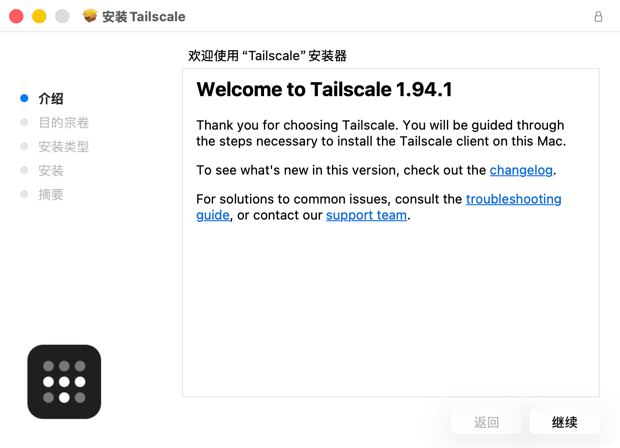
3.1.2 mac登录
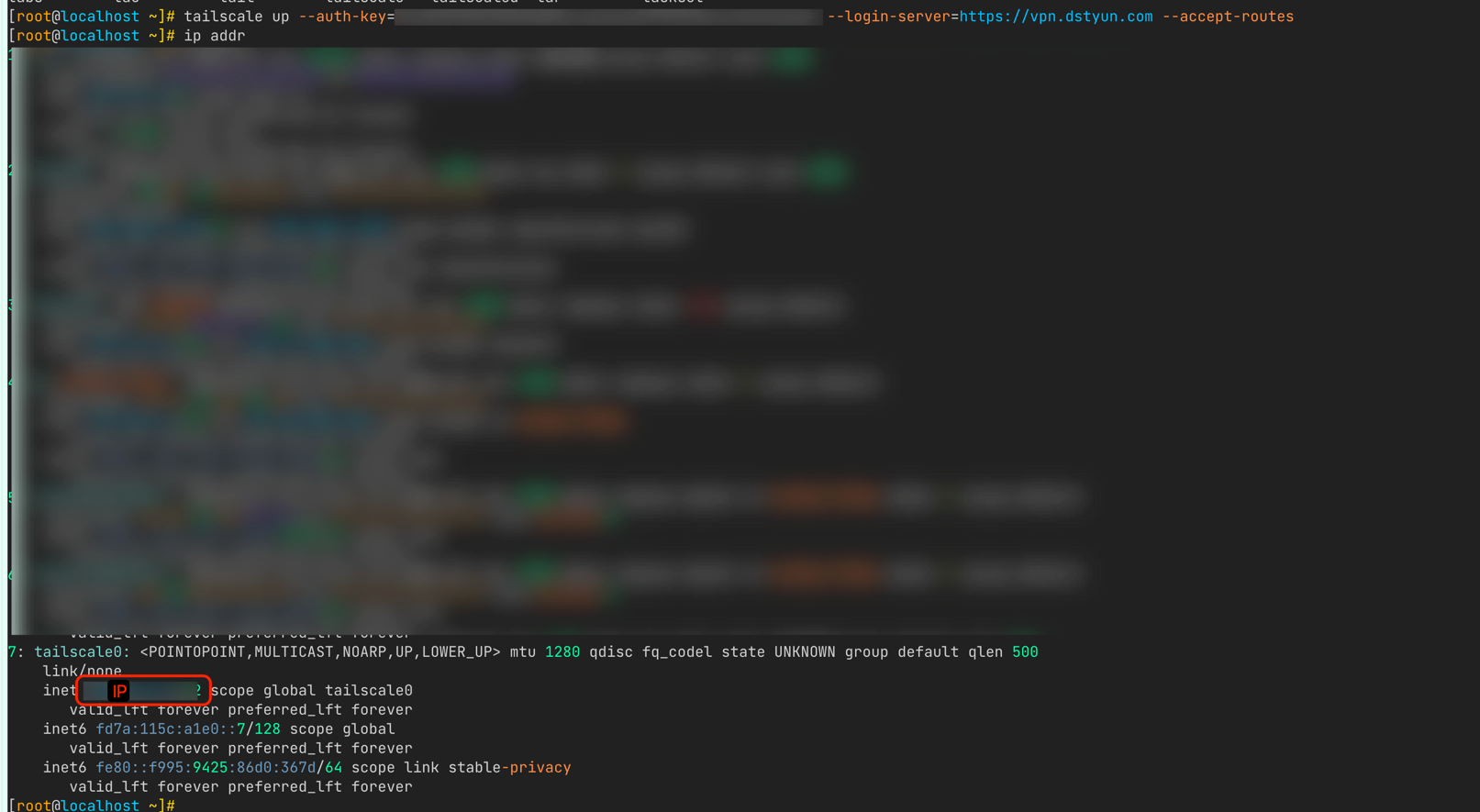
- 打开终端
shell
tailscale up --auth-key=第二步获取的AUTH_KEY --login-server=https://vpn.dstyun.com --accept-routes
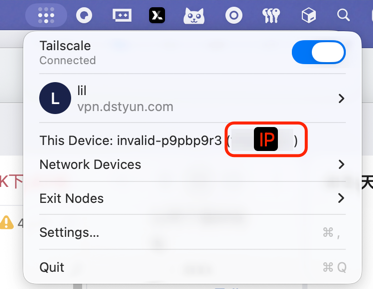
- 查看 tailscale 状态, 红色框里面显示的是当前VPN的IP
3.2 windows安装与登录
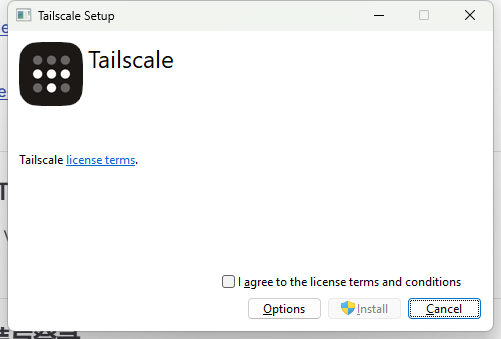
3.2.1 windows安装
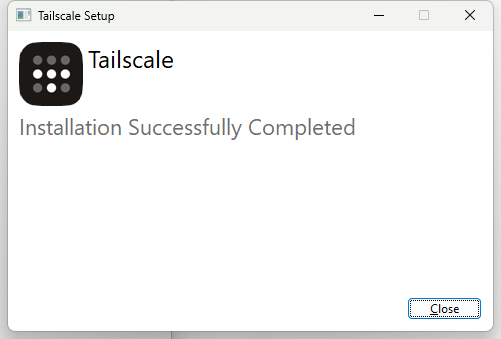
3.2.2 windows登录
- 打开命令行 执行
shell
tailscale up --login-server https://vpn.dstyun.com --authkey 第二步获取的AUTH_KEY
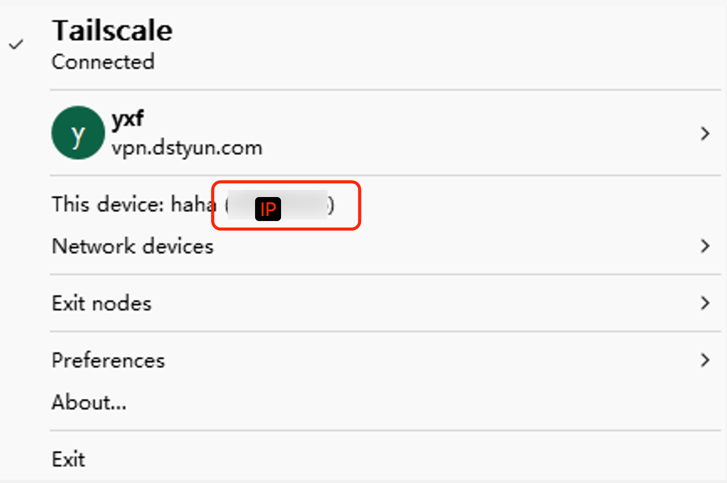
- 查看 tailscale 状态, 红色框里面显示的是当前VPN的IP
3.3 linux安装与登录
3.3.1 linux安装
- 命令行输入
shell
curl -fsSL https://tailscale.com/install.sh | sh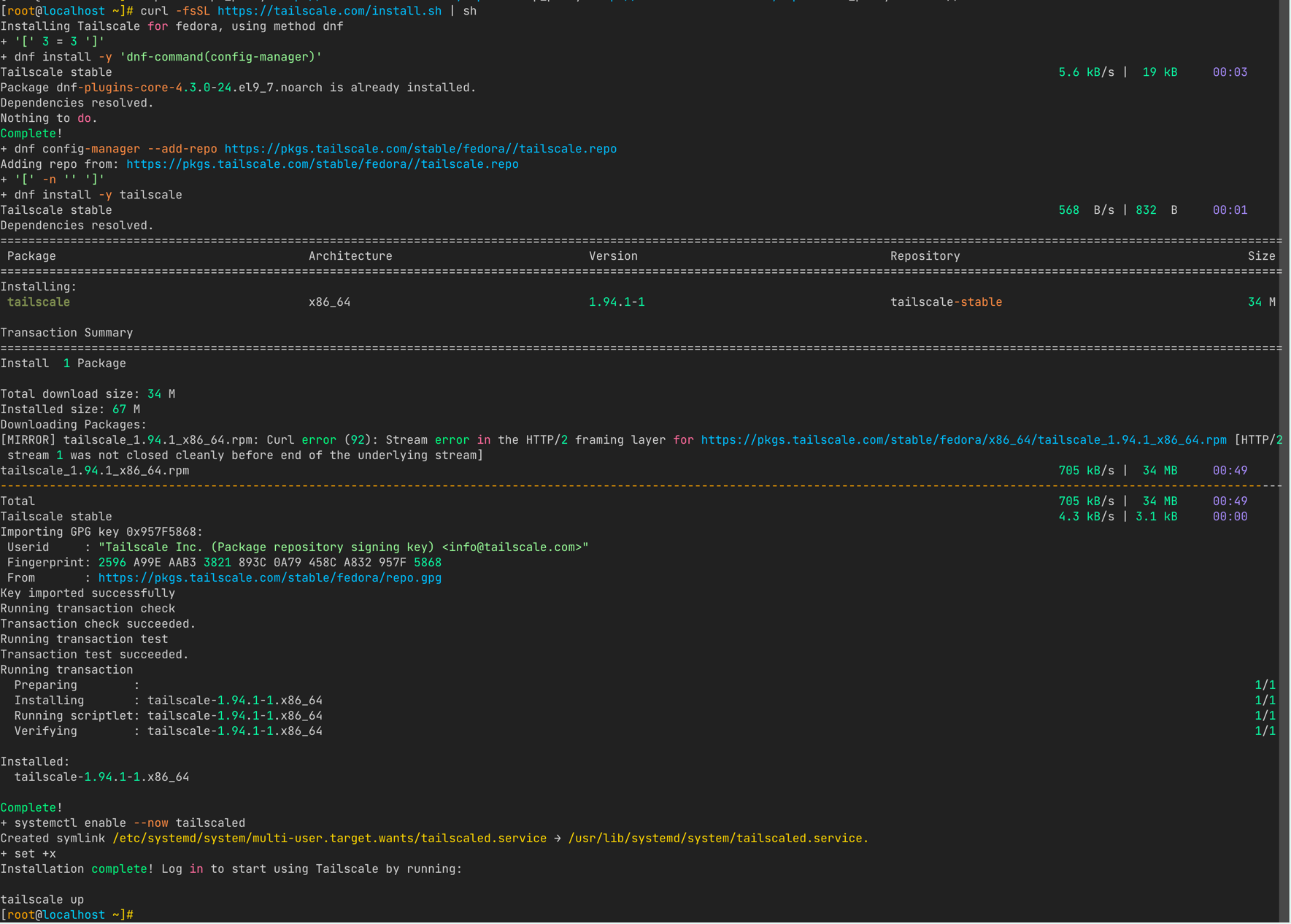
- 下载不下来也提供了
tailscale_1.94.1_x86_64.rpm离线包
3.3.2 linux运行
shell
tailscale up --auth-key=第二步获取的AUTH_KEY --login-server=https://vpn.dstyun.com --accept-routes